

Jump to a section
TL;DR
If you want to export Trustpilot reviews into Excel without manual copy-paste, the fastest workflow is the free OrderBoosts extension. It exports visible reviews to CSV, which you can open immediately in Excel or Google Sheets for audits, reporting, and review analysis.
If you need a practical way to pull public Trustpilot reviews out of the browser and into a working file, start with the free Trustpilot Review Exporter. Open the Trustpilot company page, click export, and move the CSV straight into Excel, Google Sheets, or your internal reporting workflow.
The download itself is only the first step. The real value comes after export: spotting complaint patterns, tracking review timing, reviewing wording quality, and sharing structured data with teams that do not work inside Trustpilot all day.
What the extension exports today
The current OrderBoosts extension is positioned around a simple promise: export the reviews already visible on the current Trustpilot business page without copy-pasting them one by one.
In the live workflow, the extension supports:
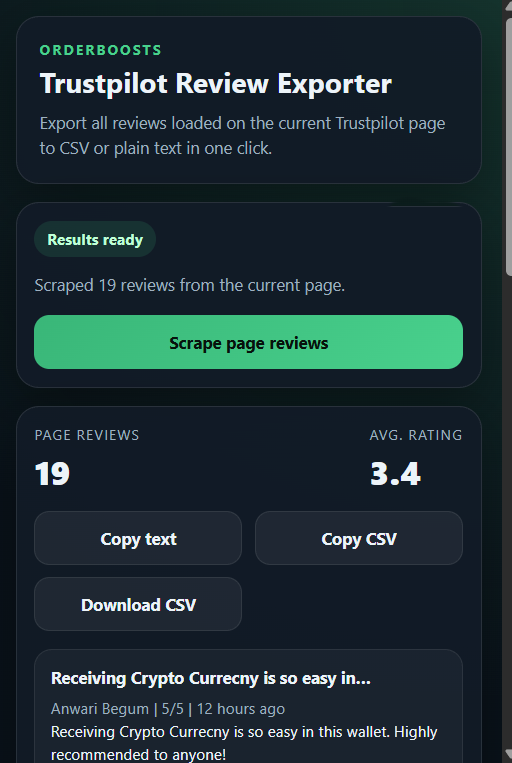
- Download CSV for Excel, Google Sheets, and spreadsheet analysis,
- Copy CSV when you want to paste structured data into another tool quickly,
- Copy plain text for quick documents or manual review.
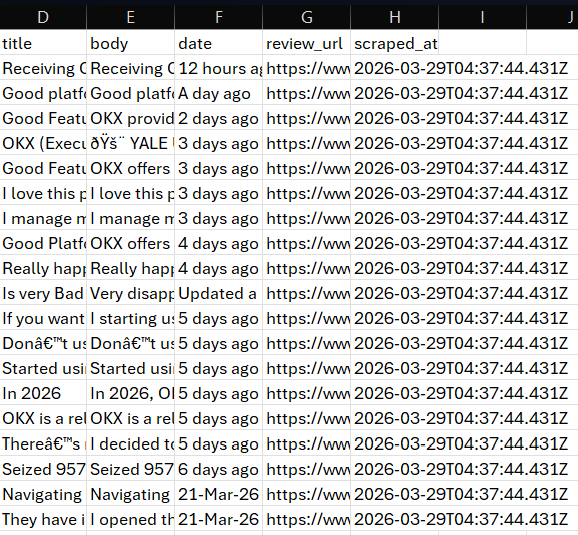
Each export includes the practical fields operators usually care about: business domain, reviewer name, rating, review title, review body, review date, review URL, scrape timestamp, and source page URL.
That makes the extension useful for:
- recurring sentiment review,
- QA on recent negative reviews,
- internal reporting,
- backup of visible public review data,
- competitor monitoring,
- handing clean review data to account managers or clients.
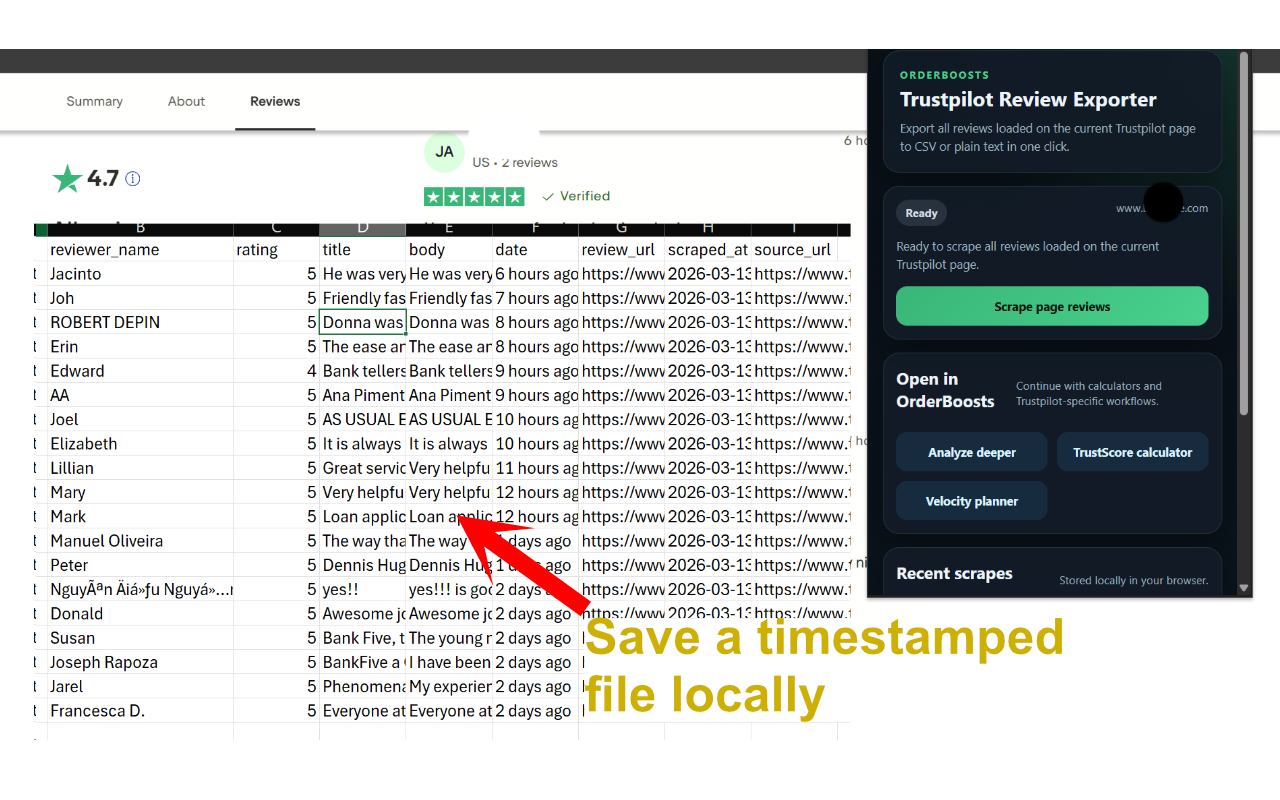
CSV vs Excel vs plain text
This topic gets confused because people often say they want an "Excel export" when what they really need is a CSV file that opens cleanly in Excel.
Use CSV when:
- you want to sort, filter, or tag reviews,
- you plan to build a monthly report,
- you need to compare ratings, dates, or wording across many rows,
- another operator will work from the file later.
Use Excel or Google Sheets as the next step when:
- the exported CSV needs formulas, color-coding, pivot tables, or comments,
- you want a client-facing sheet,
- you want to combine Trustpilot data with campaign notes or response status.
Use plain text when:
- you are pasting reviews into a document,
- you are creating a quick review memo,
- the next step is manual reading instead of spreadsheet work.
For most teams, CSV is the default and Excel is the working environment. The extension handles the export; Excel or Sheets handles the analysis.
How to export Trustpilot reviews step by step
The workflow is straightforward, but it is worth doing consistently so your exports are usable later.
- Open the relevant Trustpilot business page in Chrome.
- Launch the free Trustpilot Review Exporter.
- Click the export button and let the extension collect every review card currently loaded on the page.
- Review the count, average rating, and preview cards in the popup.
- Choose Download CSV if the next step is Excel or Google Sheets.
- Save the file with a clear date or client label so you can compare later exports.
- Open the CSV in Excel, Google Sheets, or your reporting workflow.
That process is deliberately simple because the export should be the start of the workflow, not the whole workflow.
What fields are included in the export
The current extension output is practical rather than bloated. It focuses on the fields people actually use during audits and reporting.
Typical exported columns include:
business_domainreviewer_nameratingtitlebodydatereview_urlscraped_atsource_url
That is enough to support most common jobs:
- finding repeated complaint themes,
- spotting low-rating clusters,
- checking recent review recency,
- grouping by date,
- jumping back to the original review page when someone needs context.
If you are building a response workflow after export, pair the file review with How to Respond to Negative Reviews so operators can move from raw data to better public responses quickly.
How to open the CSV in Excel or Google Sheets
This is the part many users actually mean when they search for "export Trustpilot reviews to Excel."
The extension does not create a native .xlsx file. It creates a CSV, which Excel and Google Sheets both handle well.
In Excel
- Download the CSV from the extension.
- Open Excel.
- Use Open or Import from Text/CSV and select the exported file.
- Confirm the columns look correct.
- Save it as an
.xlsxworkbook if you want formulas, notes, or extra tabs.
In Google Sheets
- Create a new sheet.
- Use File -> Import.
- Upload the exported CSV.
- Import as a new sheet or replace an existing tab.
- Add your own scoring, tags, or client notes columns.
Once the export is inside Excel or Sheets, you can sort by star rating, filter recent reviews, tag recurring themes, and compare changes month to month.
Best use cases for agencies, operators, and business owners
The export is most useful when it feeds a repeatable operating loop.
Agencies
Agencies can run monthly or campaign-based exports for each client, then summarize:
- top complaint themes,
- recent negative-review clusters,
- rating movement,
- review recency,
- one recommended action for the client.
Internal operators
Operations teams can use the export to hand structured review data to support, product, and marketing without forcing everyone back into the Trustpilot interface.
Business owners
Owners usually benefit from a lighter workflow: export recent reviews, sort low ratings first, identify repeated complaints, and decide whether the next move is response quality, support follow-up, or review-generation improvement.
If you are actively managing Trustpilot performance, the export workflow fits naturally beside the Review Velocity Planner, the TrustScore Calculator, and the broader Resources hub.
For policy or risk review, keep Trustpilot review removal process guidance nearby as well.
Common mistakes
Exporting without a question
Do not pull review data just because you can. Decide what you are trying to learn first.
Confusing CSV with native Excel export
The practical workflow is CSV first, Excel second. If you explain that clearly, the process makes sense and the file stays usable.
Treating the file as a one-time snapshot
Exports become more useful when they are repeated on a schedule. Monthly or campaign-timed comparisons are where the patterns become obvious.
Ignoring the next action
If the export reveals response gaps, routing problems, or suspicious review timing, someone needs to own the follow-up.
Saving files with vague names
Use clear file names that include the business or date. Otherwise, repeated exports become hard to compare later.
Conclusion
If your goal is to export Trustpilot reviews to CSV or Excel, the cleanest path is simple: use the free Trustpilot Review Exporter, download the CSV, and open it in Excel or Google Sheets for the actual analysis.
That gives you a repeatable workflow for audits, reporting, response planning, and review-quality checks without relying on manual copy-paste.
If you want the full stack around that export workflow, keep these open next: